Deploying website in IIS
This tutorial guides you through setting up a new website in Internet Information Services (IIS). These steps are shown for IIS 10 on Windows 10, but the same basic procedures apply to IIS 7 and 8.
Open the IIS Manager
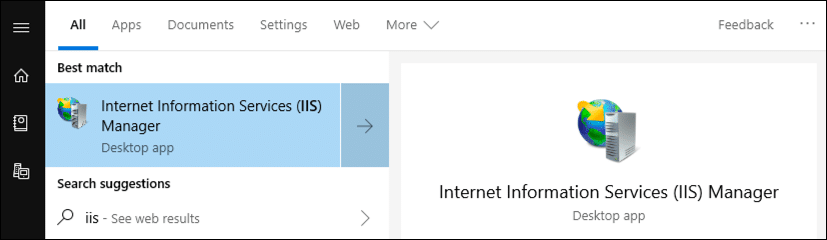
Open Internet Information Services Manager (IIS). You can quickly find it by typing "IIS" in the Windows search field.
Add website
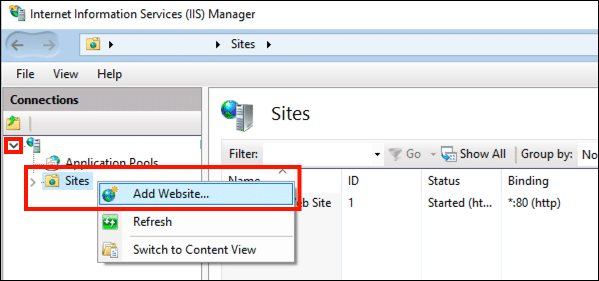
On the root of the site, right-click and select Add Website....
Create site name
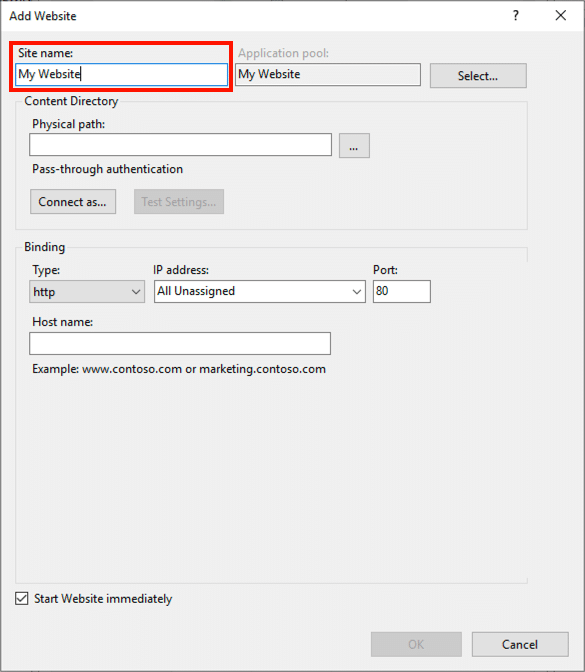
The site creation window will open. Add an easy-to-remember name for the website in the Site Name field.
Add physical path
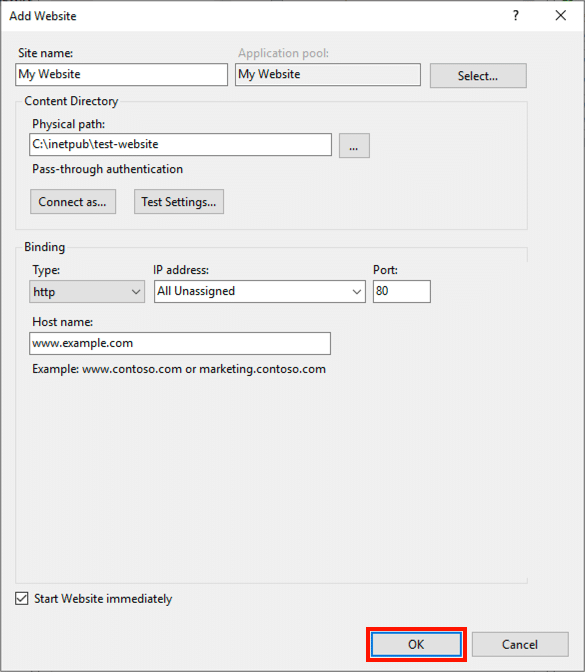
In the Content Directory section, enter the physical path to the directory where you are going to place the content of your web application. Click the ... button to navigate to the directory.
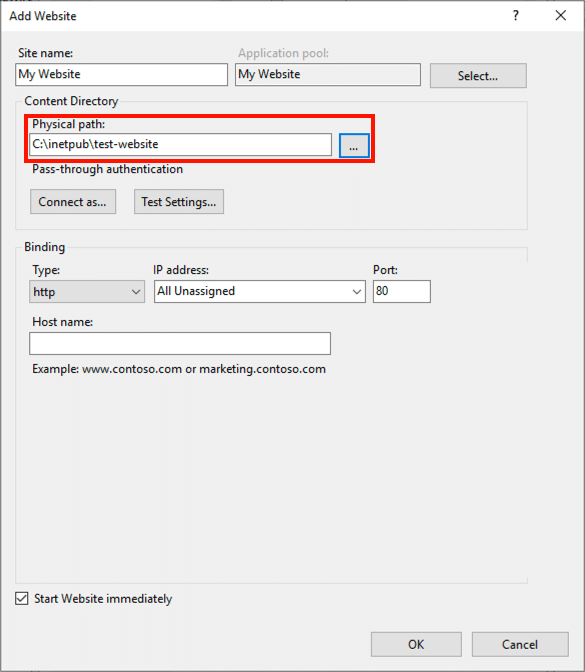
.zip package content must be extracted in its entirety into a directory, so that the physical path points to the root directory containing the application files.Set the bindings
In the Bindings section, select a protocol (HTTP or HTTPS), enter the IP address, port, and hostname.
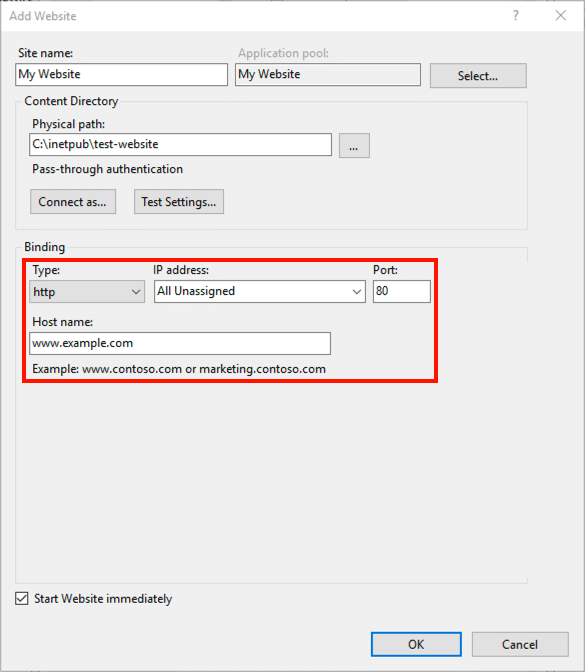
Decide whether to launch the website immediately
If you want to start the website immediately, make sure Start Website immediately is checked.
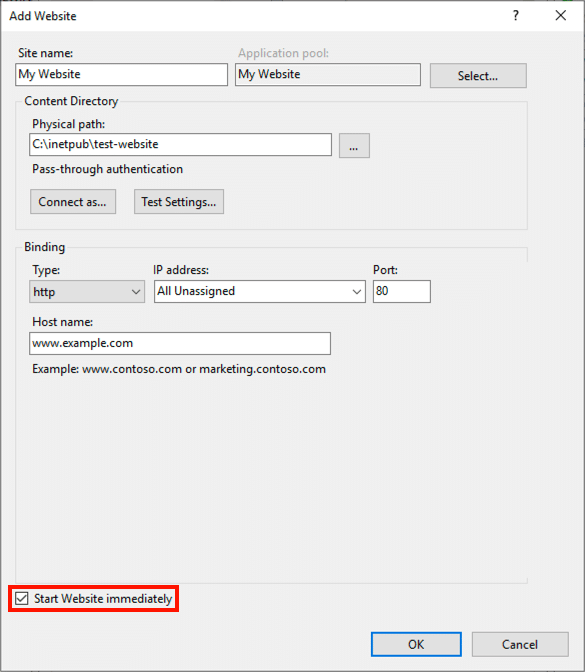
Accept changes
Click the accept button to finish creating your new website.