
Dictation Bar Component

BarComponent named export from the npm package.Dictation Bar is a high-level component designed to be integrated quickly and easily in your web application.
Getting started
1. Import resources
Install the SDK via npm:
npm install @invox-medical-npm/invox-dictation
Then import BarComponent as a named export:
import INVOX, { BarComponent } from "@invox-medical-npm/invox-dictation";
Component styles are auto-injected at runtime — no separate CSS import needed.
2. Initialize the component
- Create a container in the DOM with a unique identifier:
<div id="invox-bar"></div> - Create and show the component:
const invoxbar = BarComponent.create("invox-bar");
invoxbar.show();
3. Login
Initialize the SDK, register component customization, then log in through the Dictation Bar. Direct Dictation starts after Corporate Server authentication succeeds.
INVOX.init({
    organizationId: "provided-organization-id",
    appId: "provided_app_id",
    apiKey: "provided_api_key",
    // adminServiceUrl: "provided_admin_service_url",
    // wakeWordAssetBaseUrl: "/assets/wake-word-assets/",
});

INVOX.CustomizeComponents(() => {
    // Register optional SDK callbacks here before login.
});

const credentials = {
    user: "provided_username",
    password: "provided_password"
}

try {
    await invoxbar.login(credentials);
    INVOX.LogInfo("Direct Dictation session connected successfully.");
} catch (error) {
    INVOX.LogError("Could not start the Direct Dictation session.");
}
All INVOX.init values are provided by Invox Medical for your integration:
organizationId(required): identifier of your organization in Corporate Server. Lowercase letters, digits, and hyphens only.appId(required): identifier of the application that integrates the SDK.apiKey(required): API key associated withappId.adminServiceUrl(optional): Corporate Server URL. If omitted, the SDK uses the Invox Medical Corporate Server. Set it only when your organization uses its own Corporate Server or a proxy of your application.wakeWordAssetBaseUrl(optional): location of thewake-word-assetsfolder. If omitted, the SDK looks for it next to the SDK bundle. Set it only if you use wake-word detection and publish that folder elsewhere on the same origin.
See init for details.
4. Logout
invoxbar.logout()
    .then((result) => console.log("Successful logout!"))
    .catch((e) => console.error(e));
Public methods
create
| Function | Description | Parameters | Returns |
|---|---|---|---|
| create | Creates the element in the DOM. Not visible by default. | String | void |
const invoxbar = BarComponent.create("invox-bar");
show
| Function | Description | Parameters | Returns |
|---|---|---|---|
| show | Displays component in the user interface. | — | void |
invoxbar.show();
hide
| Function | Description | Parameters | Returns |
|---|---|---|---|
| hide | Hides Dictation Bar Component to user. | — | void |
invoxbar.hide();
remove
| Function | Description | Parameters | Returns |
|---|---|---|---|
| remove | Removes the element from the DOM. | — | void |
invoxbar.remove();
login
| Function | Description | Parameters | Returns |
|---|---|---|---|
| login | Connect to Invox Dictation service. | Object | Promise<void> |
Parameters:
credentials:Objectuser:Stringpassword:String
Before calling invoxbar.login(credentials), call INVOX.init(...) and register INVOX.CustomizeComponents(...). Do not configure transcriptionServiceUrl; the Direct Dictation endpoint is selected by the SDK build.
invoxbar.login(credentials)
    .then(() => console.log("Successful login!"))
    .catch((e) => console.error(e));
logout
| Function | Description | Parameters | Returns |
|---|---|---|---|
| logout | Closes the current Invox Dictation session. | — | Promise<boolean> |
invoxbar.logout()
    .then((result) => console.log("Successful logout!"))
    .catch((e) => console.error(e));
Customize design
The bar component includes CSS variables in the auto-injected stylesheet for easy customization:
| Variable | Description | Default |
|---|---|---|
--invox-bar-size__width | Width | 100% |
--invox-bar-size__height | Height | 30px |
--invox-bar-color__primary | Primary color | #52619f |
--invox-bar-color__secondary | Secondary color | #6d7cba |
--invox-bar-color__error | Error color | #ff9191 |
--invox-bar-color__microphone | Microphone button color | red |
--invox-bar-color__vumeter-bars--active | VUMeter active color | #3adf3a |
--invox-bar-font__color | Font color | white |
--invox-bar-font__size | Font size | 0.9rem |
How to use
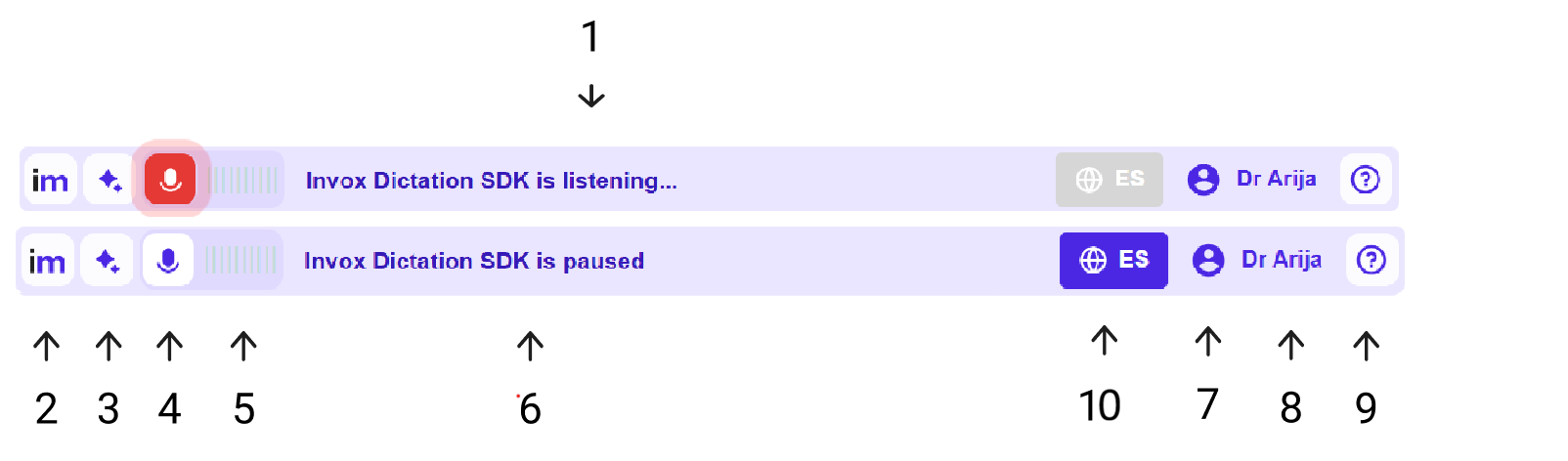
- Loading progress percentage — Displays the load percentage at login.
- Actions menu — Display a list of the current user actions like templates / dictionary.
- AI menu — Opens the AI options menu, like intelligent formatting or auto fill templates.
- Dictation button (Recognizer) — Start or stop voice recognition.
- Audio level indicator — Displays the audio level activity during the session.
- Status bar & Hypothesis viewer — Displays session status messages and recognized hypothesis during dictation.
- Profile button — Opens the user profile.
- User name — Displays the name of the current logged user.
- About menu — Opens the About menu.
- Transcription model language selector — Changes the language used by the transcription model.
How to dictate

- Click the Dictation button to start recognizer.
- Dictate your medical report.
- Click again on the Dictation button to stop recognizer.
Reset component at runtime
For single-page applications (SPA) where you need to regenerate the Dictation Bar without reloading the page:
function resetComponent(credentials) {
    // Step 1. Logout is absolutely necessary even if an error has occurred.
    invoxbar.logout()
        .catch((e) => console.error(e))
        .finally(() => {
            // Step 2. Remove from the DOM.
            invoxbar.remove();

            // Step 3. Create the dictation bar again.
            invoxbar = BarComponent.create("invox-bar");

            // Step 4. Log in to Direct Dictation again.
                invoxbar.login(credentials)
                .then(() => console.log("Successful login!"))
                .catch((e) => console.error(e));
        })
}