
Dictation Bar Component

Dictation Bar is a high-level component designed to be integrated quickly and easily in your web application.
Getting started
1. Import resources.
Import the resources in the ***head*** of your `index.html`.

- ***invox.min.js***: contains the API of INVOX Medical.
- ***invox-bar-component.min.js***: contains the Dictation Bar
  Component integration.
- ***invox-bar-component.css***: contains the styles of the
  Dictation Bar Component integration.

``` html
    <!-- INVOX Medical SDK - API -->
    <script type="text/javascript" src="libs/invox.min.js" charset="UTF-8"></script>

    <!-- INVOX Medical SDK - Dictation Bar Component -->
    <script type="text/javascript" src="libs/integrations/invox-bar/invox-bar-component.min.js" charset="UTF-8"></script>
    <link rel="stylesheet" href="libs/integrations/invox-bar/invox-bar-component.css">
```
2. Initialize the component
- Create a container in the DOM with a unique identifier:
<div id="invox-bar"></div> - Create and show the component:
const invoxbar = BarComponent.create("invox-bar");
invoxbar.show();
3. Login
Connect to the INVOX Medical service by passing the credentials and connection parameters. The following code is implemented to attempt connection to the Local Dictation Service first. If no service is found locally, it then tries to connect to the Remote Dictation Service. This approach allows for automated integration with both services.
    const credentials = {
        user: "provided_username",
        password: "provided_password"
    }

    const connectToLocal = {
        host: "localhost",    // Default host when "useDictationService" is false
        port: "8443",         // Default port
        useDictationService: false
    }

    const connectToRemote = {
        host: "dev.invoxmedical.com",
        port: "8443",
        useDictationService: true
    }

    try {
        await invoxbar.login(credentials, connectToLocal);
        INVOX.LogInfo("Local Dictation Service connected successfully.");
    } catch (error) {
        INVOX.LogWarn("Local Dictation Service not found. Trying to connect to Remote Dictation Service...");

        try {
            await invoxbar.login(credentials, connectToRemote);
            INVOX.LogInfo("Remote Dictation Service connected successfully.");
        } catch (error) {
            INVOX.LogError("Remote Dictation Service not found. Make sure that connection parameters are correct.");
        }
    }
4. Logout
invoxbar.logout()
    .then((result) => console.log("Successful logout!"))
    .catch((e) => console.error(e));
Public methods
create
| Function | Description | Parameters | Returns |
|---|---|---|---|
| create | Creates the element in the DOM. Not visible by default. | String | void |
const invoxbar = INVOXMDComponent_Bar.create("invox-bar");
show
| Function | Description | Parameters | Returns |
|---|---|---|---|
| show | Displays component in the user interface. | — | void |
invoxbar.show();
hide
| Function | Description | Parameters | Returns |
|---|---|---|---|
| hide | Hides Dictation Bar Component to user. | — | void |
invoxbar.hide();
remove
| Function | Description | Parameters | Returns |
|---|---|---|---|
| remove | Removes the element from the DOM. | — | void |
invoxbar.remove();
login
| Function | Description | Parameters | Returns |
|---|---|---|---|
| login | Connect to Invox Dictation service. | Object, Object | Promise<void> |
Parameters:
credentials:Objectuser:Stringpassword:String
connectionConfig:Object.host:Stringport:StringuseDictationService:Boolean
const credentials = {
    user: "example",
    password: "example",
}
const connectionConfig = {
    host: "example.cloud.net",
    port: "8443",
    useDictationService: true
}

// Connect to INVOX Medical service
invoxbar.login(credentials, connectionConfig)
    .then(() => console.log("Successful login!"))
    .catch((e) => console.error(e));
logout
| Function | Description | Parameters | Returns |
|---|---|---|---|
| logout | Disconnect from Invox Dictation service. | — | Promise<boolean> |
invoxbar.logout()
    .then((result) => console.log("Successful logout!"))
    .catch((e) => console.error(e));
Customize design
| Variable | Description | Default |
|---|---|---|
--invox-bar-size__width | Width | 100% |
-–invox-bar-size__height | Height | 30px |
-–invox-bar-size__padding | Padding | 2px |
-–invox-bar-size__border-radius | General border radius | 5px |
-–invox-bar-size__inner-border-radius | Border radius from some internal components | 3px |
-–invox-bar-size__vumeter-width | Volume indicator width | 50px |
-–invox-bar-color__primary | Primary color | #52619f |
-–invox-bar-color__primary–hover | Primary hover color | #415491 |
-–invox-bar-color__secondary | Secondary color | #6d7cba |
-–invox-bar-color__error | Error color | #ff9191 |
-–invox-bar-color__microphone | Microphone button color | red |
-–invox-bar-color__microphone–hover | Microphone button hover color | #e30000 |
-–invox-bar-color__microphone–disabled | Microphone button disabled color | #ff6060 |
-–invox-bar-color__microphone–focus | Microphone button focus color | #f3a2b4 |
-–invox-bar-color__vumeter-bars | Volume indicator bars color | white |
-–invox-bar-color__vumeter-bars–active | Volume indicator color when recognizing | #3adf3a |
-–invox-bar-font__color | Font color | white |
-–invox-bar-font__family | Font family | sans-serif, Arial, Verdana, “Trebuchet MS” |
-–invox-bar-font__size | Font size | 0.9rem |
-–invox-bar-icons__size | Icons size | 1rem |
-–invox-bar-icons__color | Icons color | white |
-–invox-bar-menu-font__color | Menu font color | -–invox-bar-color__primary |
-–invox-about-dialog__z-index | About dialog z-index | 700 |
-–invox-profile-dialog__z-index | Profile dialog z-index | 700 |
-–invox-dialogs-color__primary | Dialogs primary color | #52619f |
-–invox-dialogs-color__primary–hover | Dialogs primary hover color | #415491 |
-–invox-dialogs-size__width | Common dialog width | 400px |
-–invox-dialogs-size__height | Common dialog height | 400px |
-–invox-dialogs-size__min-width | Minimum common dialog width | 300px |
-–invox-dialogs-size__min-height | Minimum common dialog height | 400px |
-–invox-dialogs-size__max-width | Maximum common dialog height | 100vw |
-–invox-dialogs-size__max-height | Maximum common dialog height | 100vh |
-–invox-dialogs-size__border-radius | Common dialog border radius | 5px |
How to use
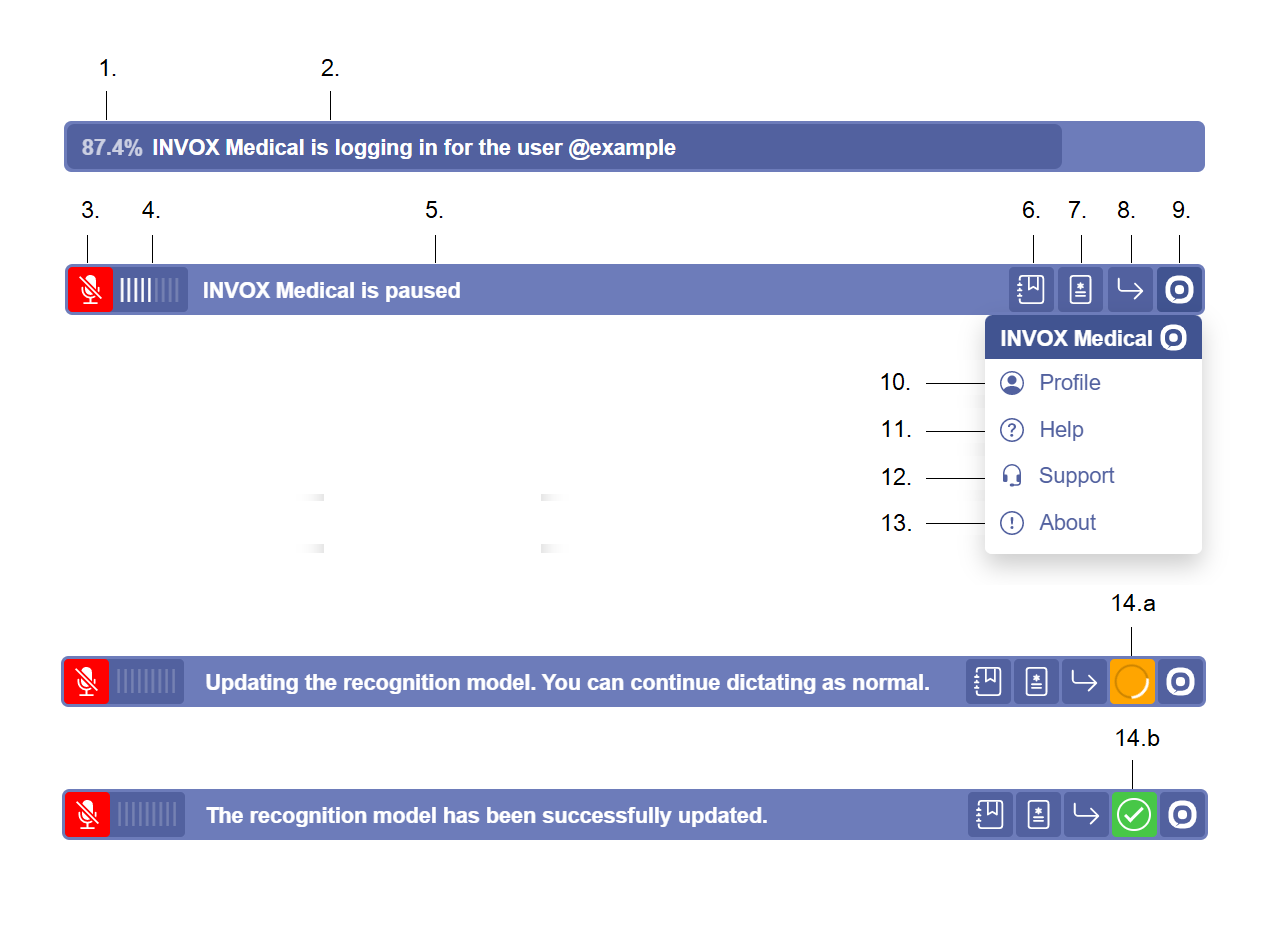
- Loading progress percentage. Displays the load percentage at login.
- Progress status. Displays messages about the status of the session initialization.
- Dictation button (Recognizer). Allows you to start or stop voice recognition.
- Audio level indicator. Displays the audio level activity during the session.
- Status bar & Hypthesis viewer. Displays messages about the status of the session and during dictation shows the recognized hypothesis.
- Dictionary button. Displays dictionary dialog to allow user to create, read, update and remove (CRUD) words.
- Templates button. Displays templates dialog to allow user to create, read, update and remove (CRUD) templates.
- Transformations button. Displays transformations dialog to allow user to create, read, update and remove (CRUD) transformations.
- Menu button. Displays more features.
- Profile button. Displays the user information.
- Help button. Redirect to user help guide.
- Support button. Redirect to INVOX Medical support center.
- About button. Displays information about INVOX Medical.
- Adaptation indicator. Displays the status of the recognition model adaptation process.
- 14.a. Loading status. The adaptation process is in progress.
- 14.b. Finished status. The adaptation process has finished successfully.
How to dictate

- Click the Dictation button to start recognizer.
- Dictate your medical report.
- Click again on the Dictation button to stop recognizer.
Reset component at runtime
For single-page applications (SPA) where you need to regenerate the Dictation Bar without reloading the page:
function resetComponent(credentials, connectionConfig) {

    // Step 1. Logout is absolutely necessary even if an error has occurred in the session.
    invoxbar.logout()
        .then((result) => console.log("Successful logout!"))
        .catch((e) => console.error(e))
        .finally(() => {

            // Step 2. When logout finishes we can remove from the DOM.
            invoxbar.remove();

            // Step 3. Create the dictation bar again.
            invoxbar = new INVOXMDComponent_Bar.create("invox-bar");

            // Step 4. Connect to INVOX Medical service again.
            invoxbar.login(credentials, connectionConfig)
                .then(() => console.log("Successful login!"))
                .catch((e) => console.error(e));
        })
}